Design: Modeling Electrical Intent
Learn how to model electrical systems as structured intent, not just drawings
The Design Canvas — Foundation of the Twin
The design canvas is where electrical topology becomes structured intent. Unlike traditional CAD tools that focus on drawings, the canvas captures computable relationships: components with typed interfaces, nets with electrical meaning, and connections that propagate to validation and manufacturing. This model becomes the single source of truth—every downstream workflow (validation, analysis, BOM generation) derives from this same model. Changes here automatically propagate everywhere, ensuring consistency and eliminating manual re-entry.
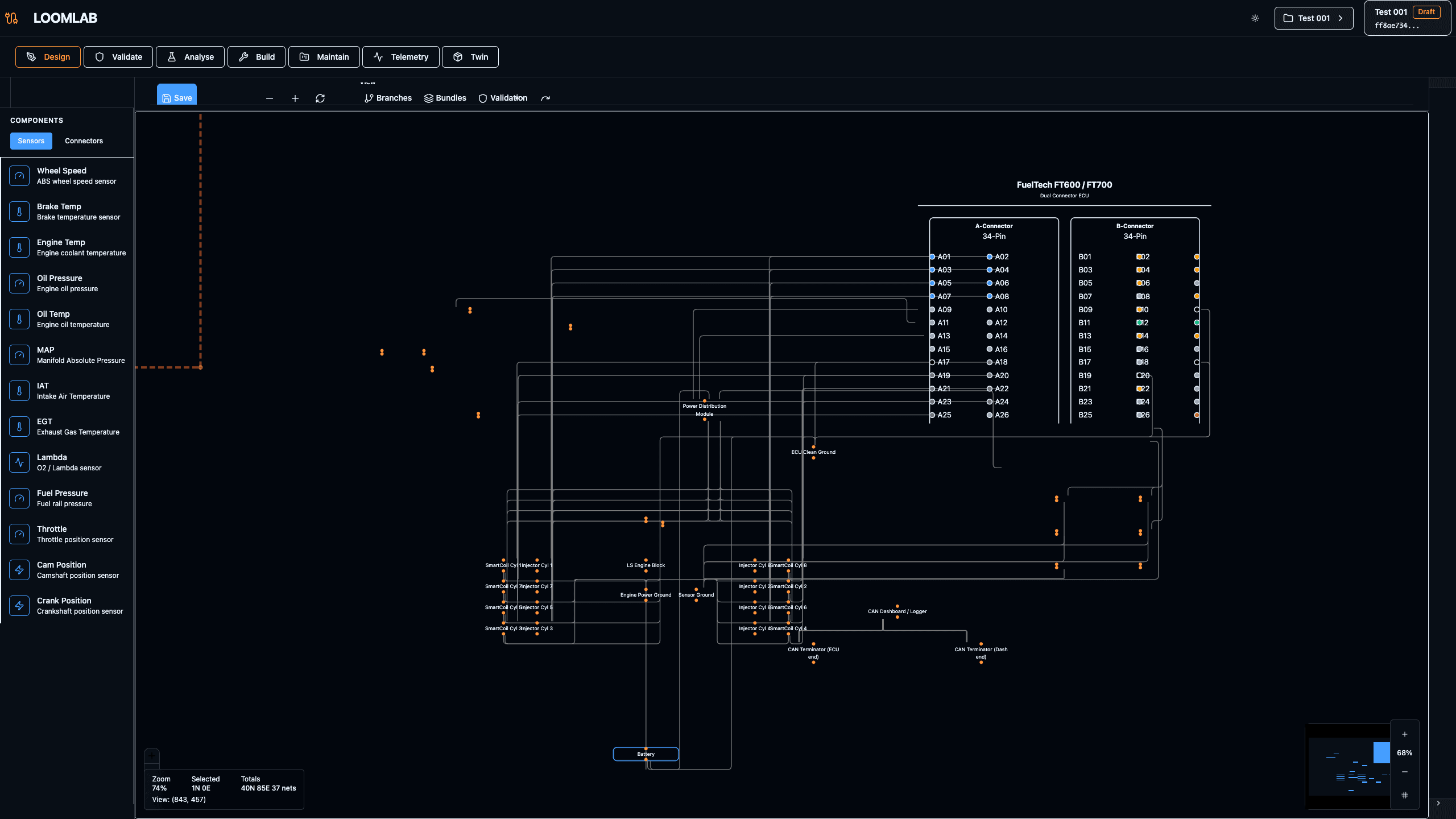
Actions:
- →Navigate to /projects/[id]/design
- →Observe the canvas workspace with component placement area and tool panels
- →Understand that this canvas is the foundation for all downstream workflows
- →Note the relationship between canvas design and automated outputs
Expected Outcome: Design canvas workspace ready for component placement, with understanding that this model drives all downstream outputs
Place Components and Define Interfaces
Components represent physical devices with typed interfaces. An ECU has specific pins; a sensor has signal and ground. Defining these interfaces correctly ensures downstream validation and manufacturing outputs are accurate.
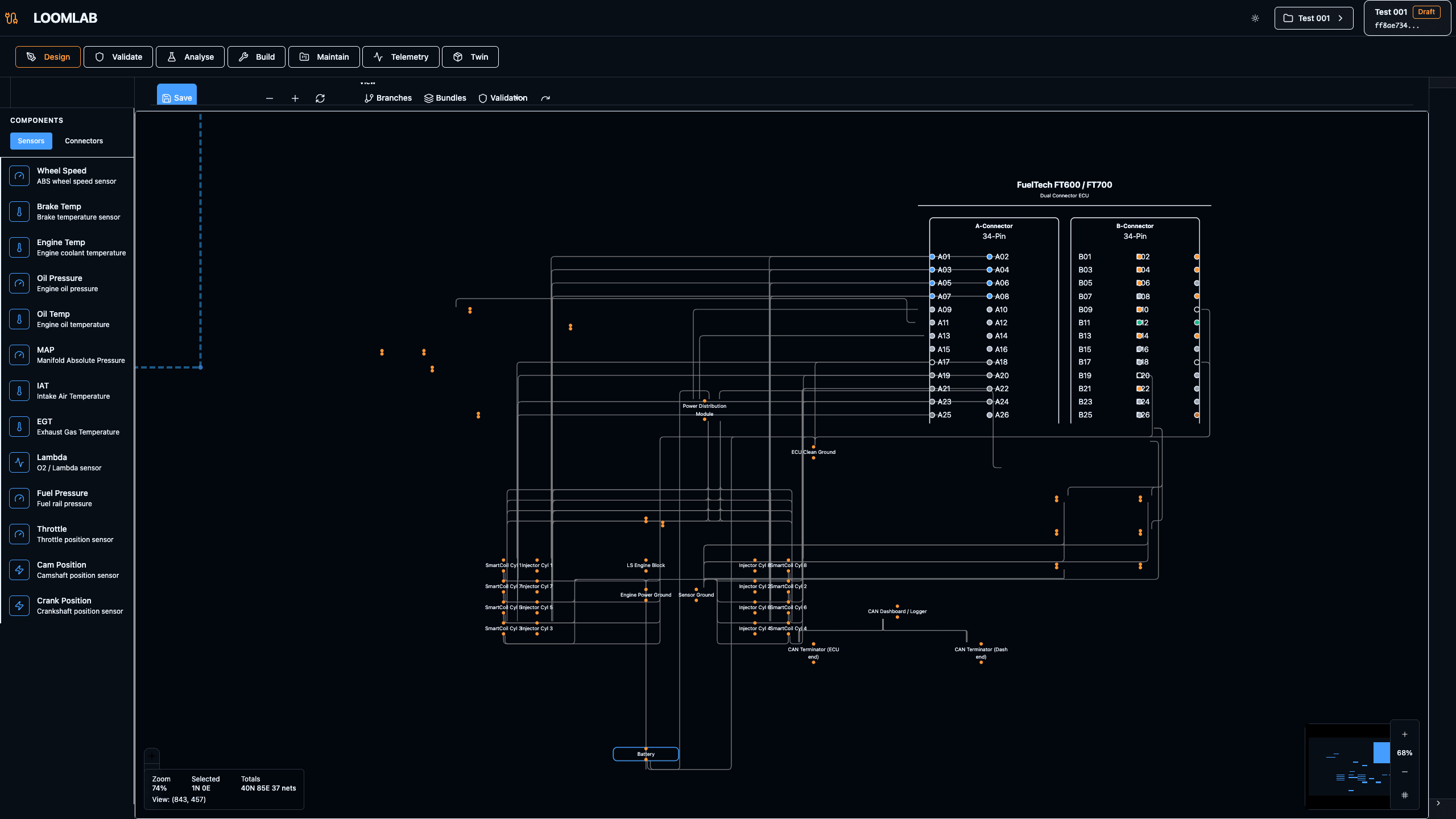
Actions:
- →Open component library panel
- →Search for 'ECU', 'Battery', 'MAP Sensor'
- →Place components on canvas
Expected Outcome: Sparse electrical system with key components placed
Create Nets — Electrical Meaning
Nets define electrical intent, not just connectivity. CAN_H and CAN_L represent a differential bus. SENSOR_5V represents a regulated power rail. These nets propagate unchanged into validation rules and manufacturing cut lists.
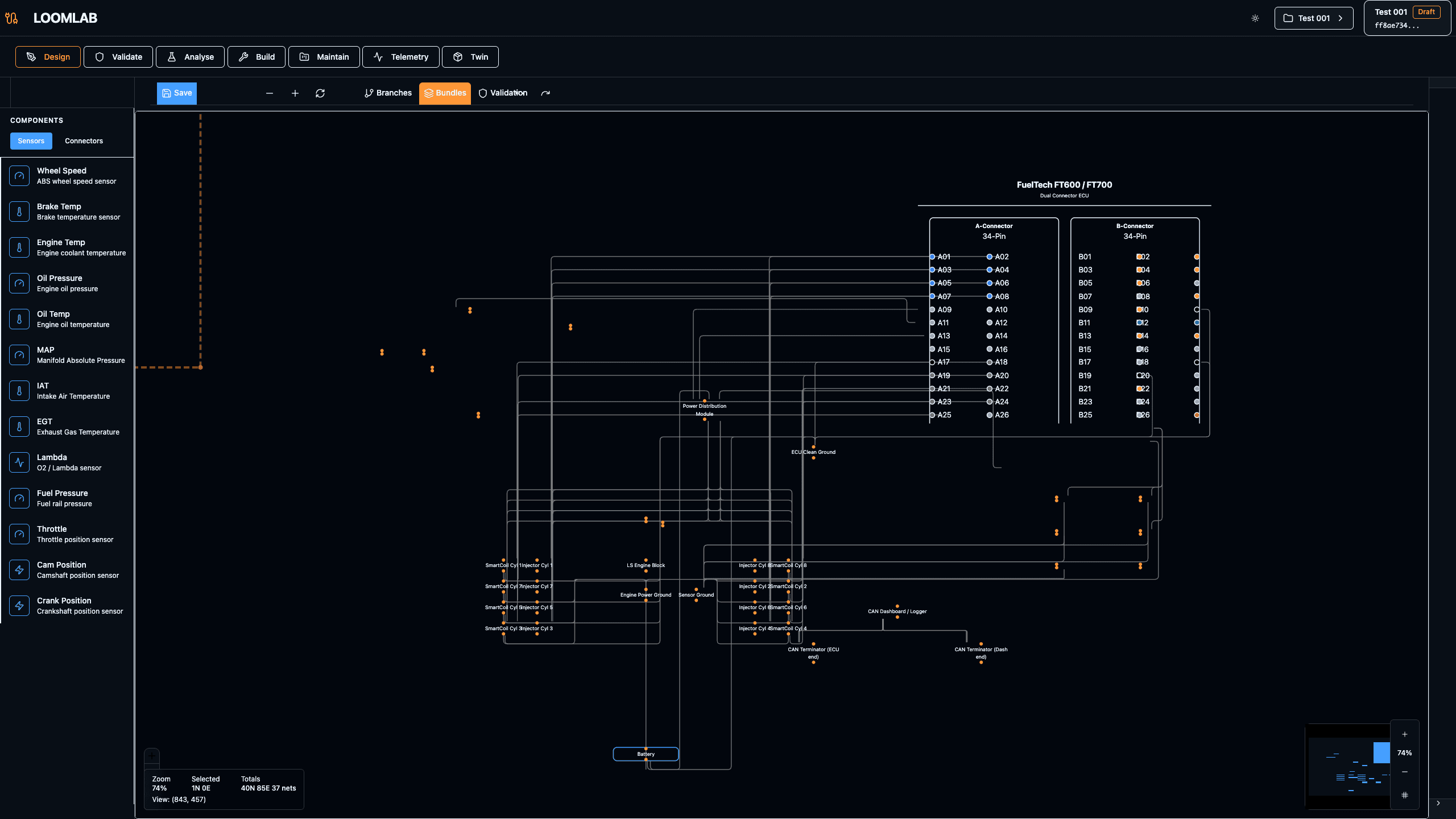
Actions:
- →Toggle nets visibility
- →Open nets management panel
- →Review net naming and topology
Expected Outcome: Nets visible, showing electrical architecture clearly
Edit Component Properties — Single Source of Truth
The twin remains the system-of-record. Edit properties (pins, ratings, constraints, part numbers) where they belong: in the model. When you change a component's current rating, that change immediately affects ampacity validation. Update a connector's pinout, and the cut list reflects it. Modify a sensor's signal type, and telemetry mapping updates. This single source of truth eliminates inconsistencies—there's no separate BOM spreadsheet or validation database to keep in sync. All changes propagate automatically to validation, analysis, manufacturing, and operational systems.
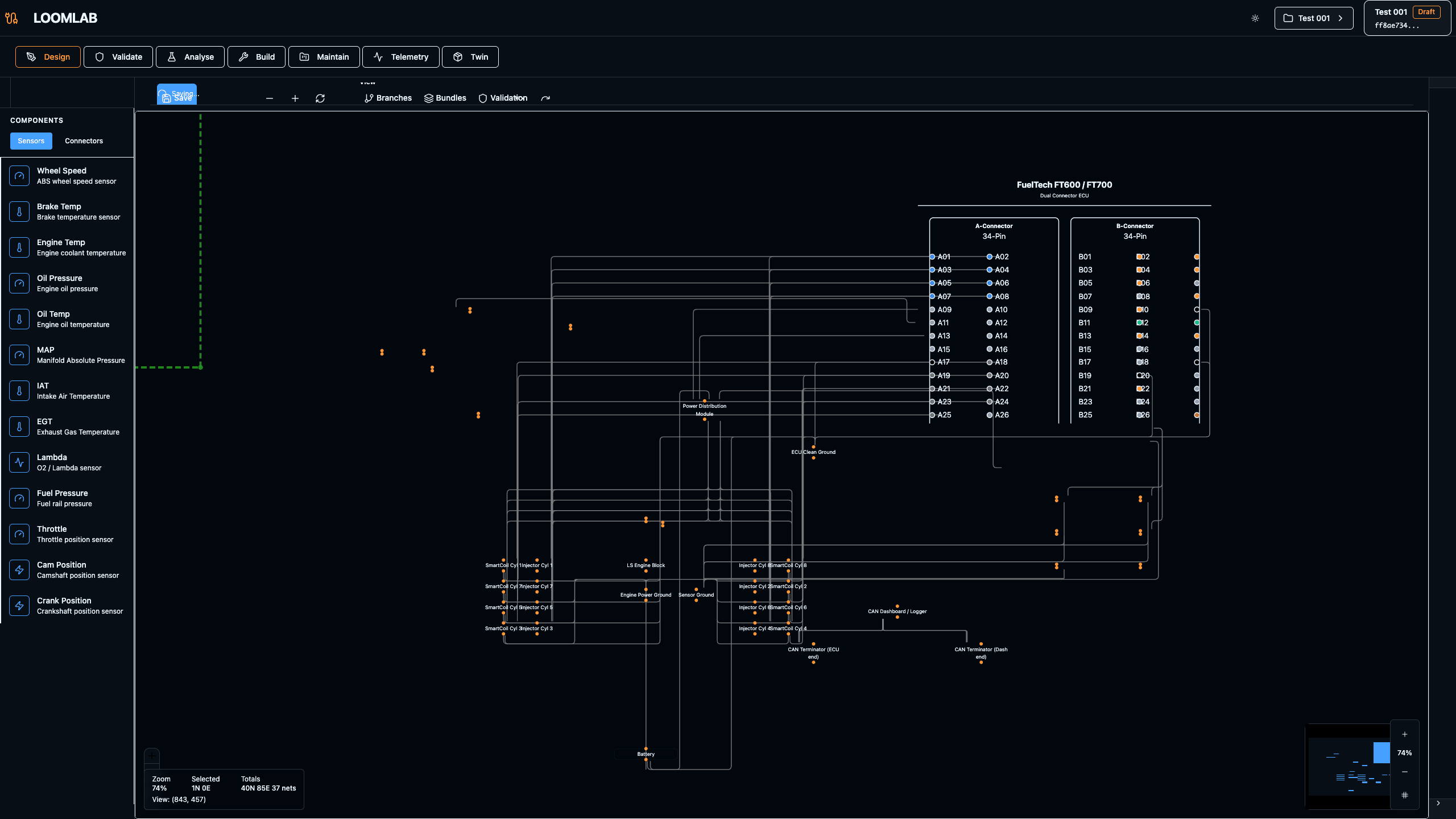
Actions:
- →Select a component on canvas
- →Open properties panel showing electrical attributes
- →Review pins, ratings, part numbers, and constraints
- →Understand how property changes affect downstream outputs
- →Modify a property and observe automatic propagation
Expected Outcome: Component properties panel open with understanding that changes here propagate to validation, BOM, and all outputs automatically
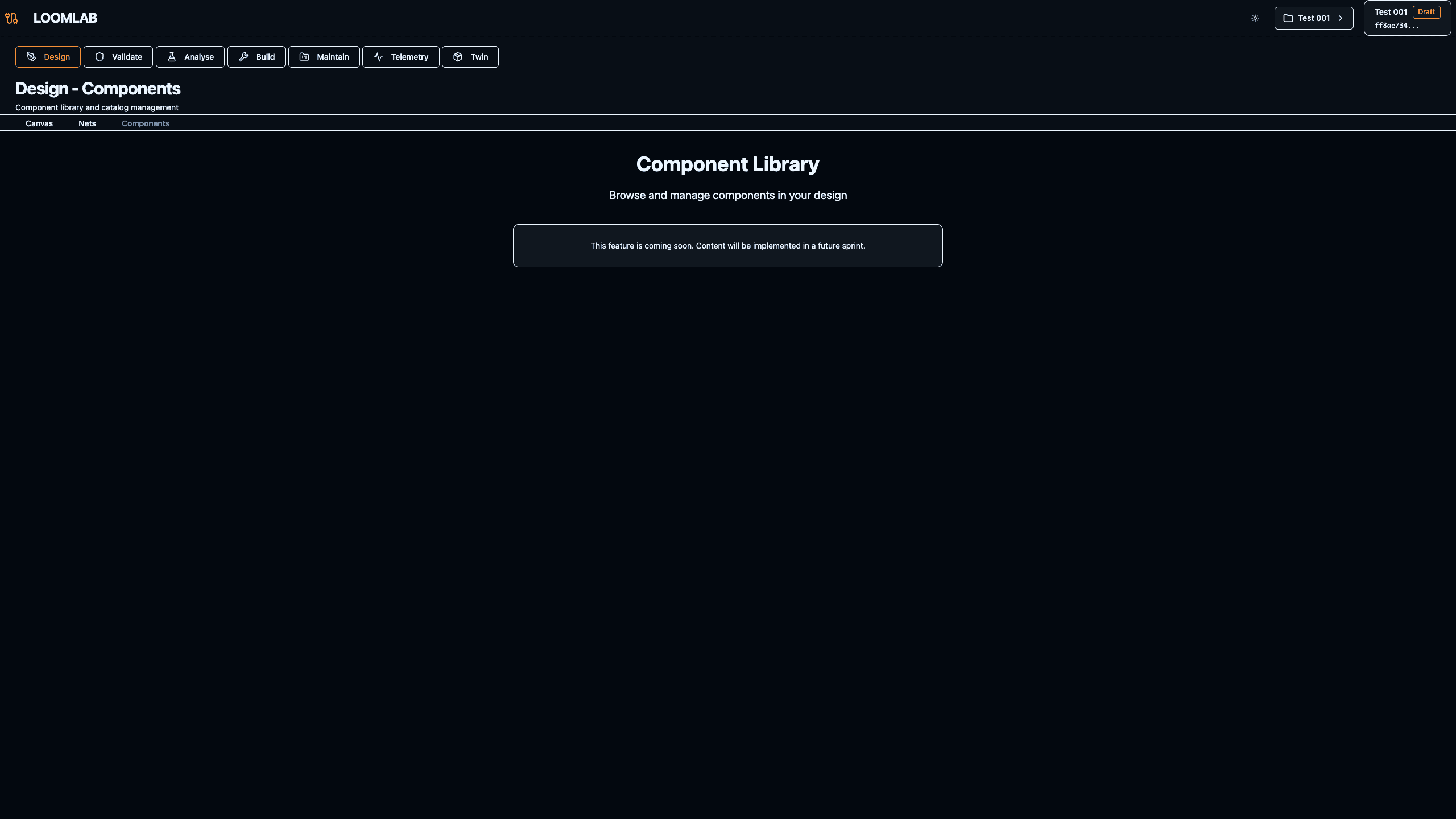
Component Library
The library standardizes components and metadata so the twin produces consistent validation and manufacturing outputs. Reusable components reduce errors and improve workflow speed.
Actions:
- →Navigate to component library
- →Search for connectors or sensors
- →Review component metadata
Expected Outcome: Library showing available components with metadata